Jump to content
View in the app

A better way to browse. Learn more.

Froxlor Forum

A full-screen app on your home screen with push notifications, badges and more.

To install this app on iOS and iPadOS
  1. Tap the Share icon in Safari
  2. Scroll the menu and tap Add to Home Screen.
  3. Tap Add in the top-right corner.
To install this app on Android
  1. Tap the 3-dot menu (⋮) in the top-right corner of the browser.
  2. Tap Add to Home screen or Install app.
  3. Confirm by tapping Install.
  • Search By Tags

    Search will match any tag entered
  • Search By Author

Content Type

Forums

  • Froxlor
    • Announcements
    • Feedback
    • Development
    • Bugs and Feature Requests
    • Trashcan
  • Support
    • General Discussion
  • Other Languages
    • German / Deutsch

Find results in

Find results that contain...

Date Created

  • Start

    End

Last Updated

  • Start

    End


Filter by number of...

  • Minimum number of replies

  • Minimum number of views

Found 2 results

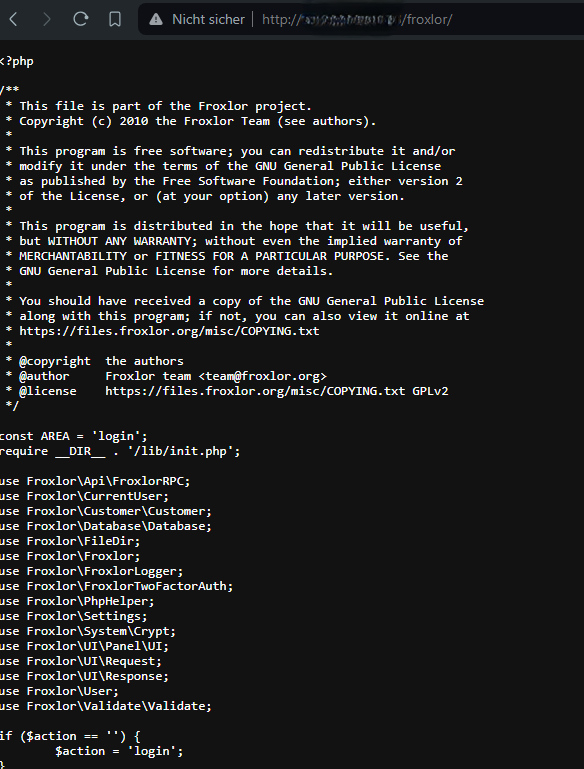
  1. Jedes mal wenn ich die Schritte ausgeführt habe und die IP/froxlor Seite aufrufen kann erscheint mir diese in HTML Code. Hab ich mich irgendwie verklickt das das so dargestellt wird oder ist das ein Fehler? Ich mag mich noch an die erste Installation erinnern wo die Seite erst normal dargestellt wurde und dann im nächsten Fenster wieder in Code dargestellt wurde ich weiss nicht ob ich mich damals einfach verklickt habe. Wäre froh um Unterstützung zu bekommen. Beispiel ist im Anhang. Gruss OrionExodus
  2. Hi, Is Ubuntu16 compatible with froxlor. I have tried the same. FCGI getting failed. I am unable to find documentation for the same in "Configuration" inside froxlor.

Configure browser push notifications

Chrome (Android)
  1. Tap the lock icon next to the address bar.
  2. Tap Permissions → Notifications.
  3. Adjust your preference.
Chrome (Desktop)
  1. Click the padlock icon in the address bar.
  2. Select Site settings.
  3. Find Notifications and adjust your preference.